Bootstrap is one of the simplest and most used CSS libraries. This article will guide you on configuring a NextJs project with Bootstrap SCSS and JS files.
Codesandbox Demo
%[https://codesandbox.io/p/github/achingachris/next-bootstrap-template/draft/zealous-archimedes]
GitHub:
%[https://github.com/achingachris/next-bootstrap-template/tree/config-bootstrap-scss-and-js]
Creating a Next.js Project
If you already have a NextJS project, skip to the next step.
On a terminal, run the following script to set up a NextJs project:
npx create-next-app@latestAfter installation, run:
npm run devA successful setup will run on localhost:3000.
Installing Bootstrap
To install bootstrap, run the following script on the root of the project:
npm i bootstrapIf you want to use bootstrap styles as they are, without any customization, import the styles to the file: pages/_app.js
import 'bootstrap/dist/css/bootstrap.min.css'The updated file:
import 'bootstrap/dist/css/bootstrap.min.css'
import '../styles/globals.css'

function MyApp({ Component, pageProps }) {
  return <Component {...pageProps} />
}
export default MyApp
To test for a successful setup, edit pages/app.js to the following:
import Head from 'next/head'
export default function Home() {
  return (
    <>
      <Head>
        <title>NextJS</title>
        <meta name='description' content='Generated by create next app' />
        <link rel='icon' href='/favicon.ico' />
      </Head>
      <main className='container'>
        <h1 className='text-center'>NextJS Application</h1>
      </main>
    </>
  )
}
Run the development server to view the changes:
npm run devNextJs runs on localhost:3000
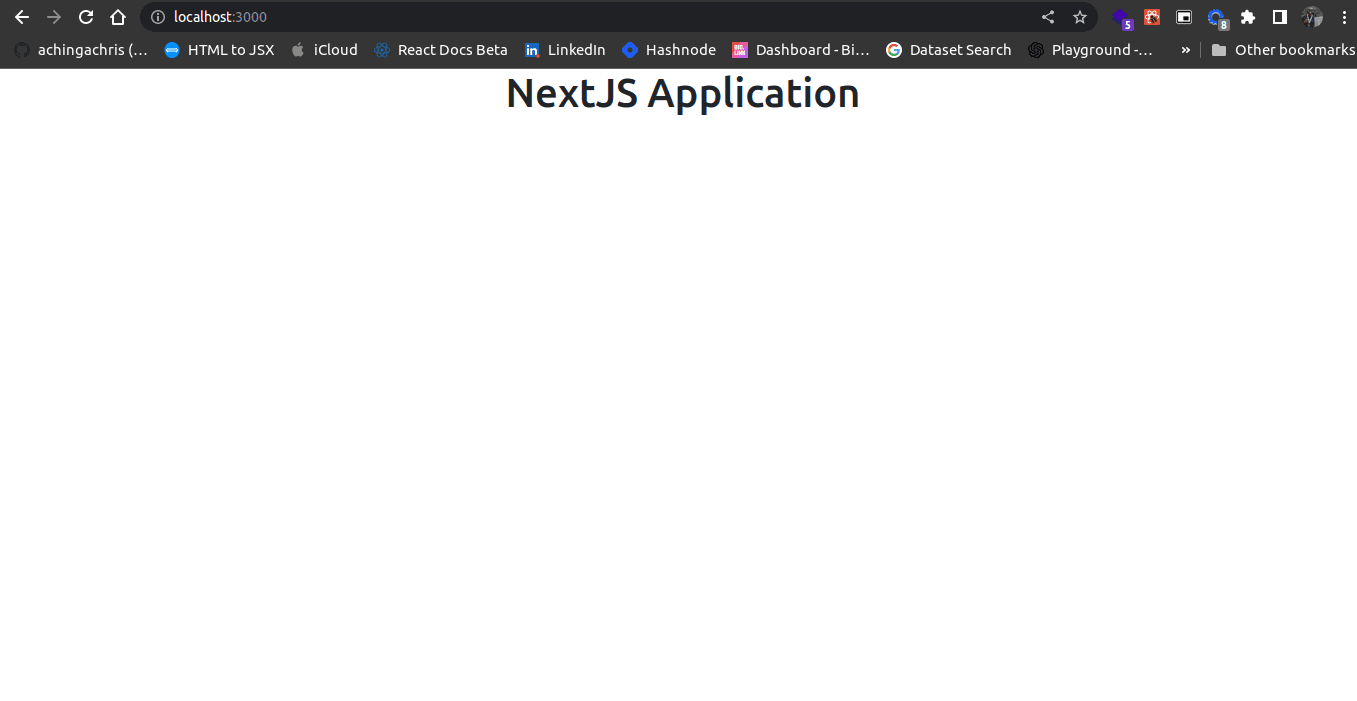
If the text is centered, the setup was a success! Kudos
Configuring Bootstrap with SCSS
In most cases, you would love to customize most of Bootstrap's styles. Bootstrap allows you to do that by using its SCSS files.
Install sass by running:
npm install sassAfter that, you need to add the path to where the .scss files are. Add the following to the next.config.js file:
  sassOptions: {
    includePaths: [path.join(__dirname, 'styles')],
  },
The updated next.config.js file:
module.exports = {
  reactStrictMode: true,
  sassOptions: {
    includePaths: [path.join(__dirname, 'styles')],
  },
}
Next, inside the styles directory, create a new scss file: customBootstrap.scss, and add the following:
$theme-colors: (
  'primary': #093ea8,
  'secondary': #3bd7ec,
  'success': #22e11c,
  'info': #d9ff50,
  'warning': #ffbe0b,
  'danger': #ff0000,
  'light': #c0ccda,
  'dark': #000103,
);
@import '/node_modules/bootstrap/scss/bootstrap.scss';
By using $theme-colors you override bootstrap default values.
To render the new changes, you update the import statement in pages/app.js:
import '../styles/customBootstrap.scss'
import '../styles/globals.css'
function MyApp({ Component, pageProps }) {
  return <Component {...pageProps} />
}
export default MyApp
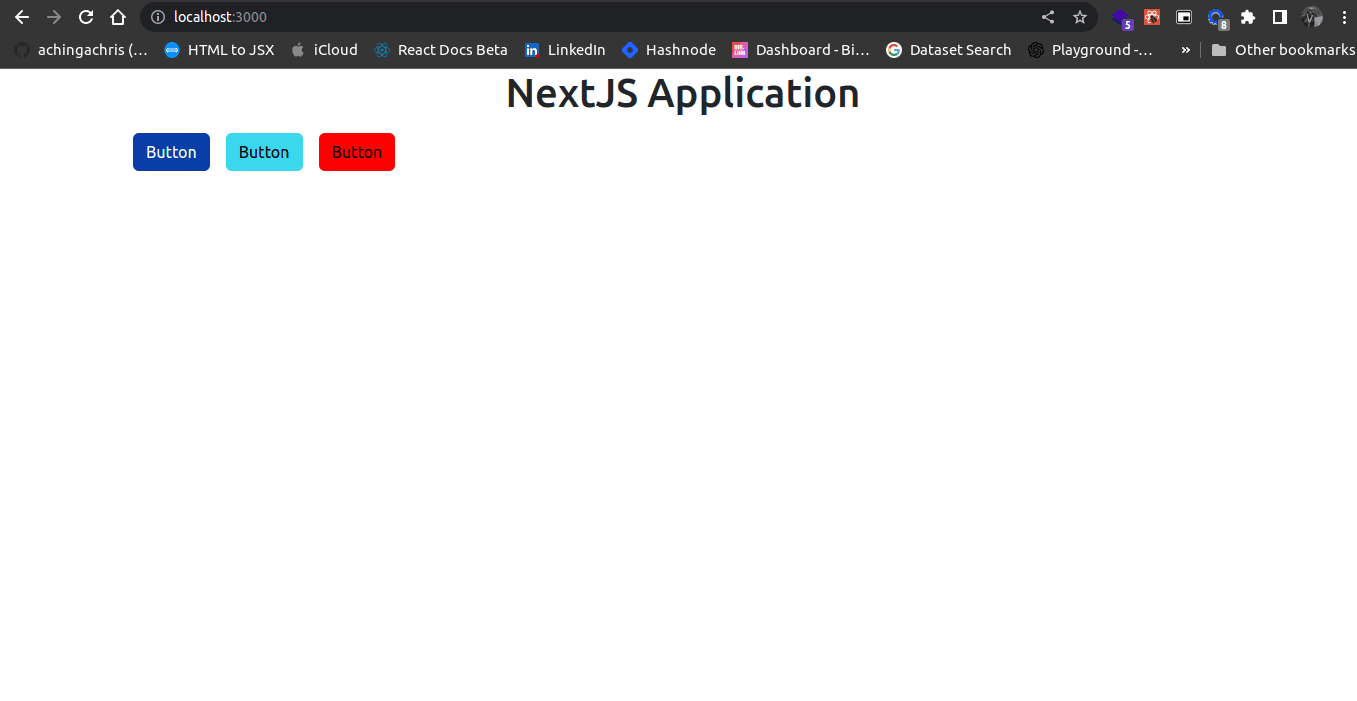
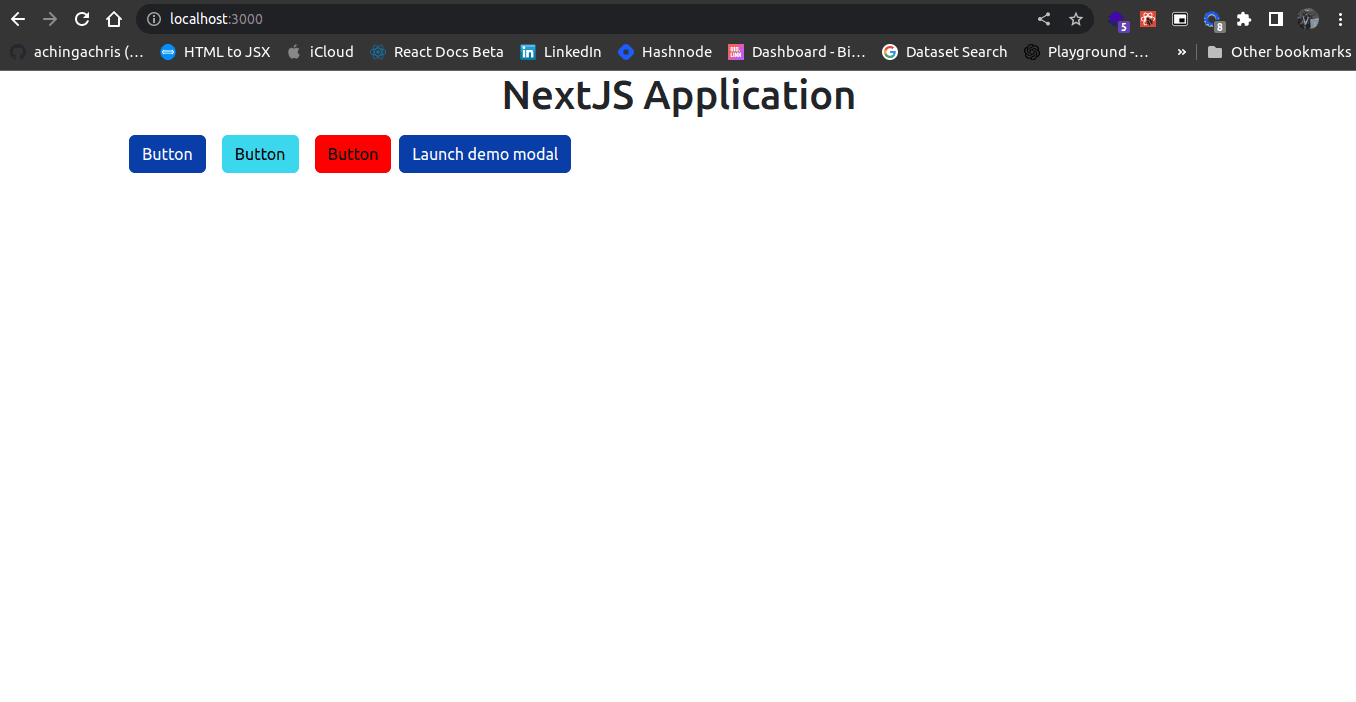
Add buttons with different colors to notice the difference from bootstrap's default colors. You can do that by updating the pages/index.js file into:
import Head from 'next/head'
export default function Home() {
  return (
    <>
      <Head>
        <title>NextJS</title>
        <meta name='description' content='Generated by create next app' />
        <link rel='icon' href='/favicon.ico' />
      </Head>
      <main className='container'>
        <h1 className='text-center'>NextJS Application</h1>
        <button className='btn btn-primary m-2'>Button</button>
        <button className='btn btn-secondary m-2'>Button</button>
        <button className='btn btn-danger m-2'>Button</button>
      </main>
    </>
  )
}
Congratulations! You did it.
One more thing…
Using Bootstrap JS
There are a number of ways to add Bootstrap JS scripts to a NextJS application. For this article, you will use the simplest and most effective way, using the useEffect hook.
To do that, you will edit the pages``/``**_app.js** file to:
import { useEffect } from 'react'
import '../styles/customBootstrap.scss'
import '../styles/globals.css'
function MyApp({ Component, pageProps }) {
  useEffect(() => {
    import('bootstrap/dist/js/bootstrap')
  }, [])

  return <Component {...pageProps} />
}
export default MyApp
To test a successful configuration, add the following snippet inside the index.js file:
          {/* Button trigger modal */}
          <button
            type='button'
            className='btn btn-primary'
            data-bs-toggle='modal'
            data-bs-target='#exampleModal'
          >
            Launch demo modal
          </button>
          {/* Modal */}
          <div
            className='modal fade'
            id='exampleModal'
            tabIndex={-1}
            aria-labelledby='exampleModalLabel'
            aria-hidden='true'
          >
            <div className='modal-dialog'>
              <div className='modal-content'>
                <div className='modal-header'>
                  <h1 className='modal-title fs-5' id='exampleModalLabel'>
                    Modal title
                  </h1>
                  <button
                    type='button'
                    className='btn-close'
                    data-bs-dismiss='modal'
                    aria-label='Close'
                  />
                </div>
                <div className='modal-body'>...</div>
                <div className='modal-footer'>
                  <button
                    type='button'
                    className='btn btn-secondary'
                    data-bs-dismiss='modal'
                  >
                    Close
                  </button>
                  <button type='button' className='btn btn-primary'>
                    Save changes
                  </button>
                </div>
              </div>
            </div>
          </div>
Run the local server and on the Launch Modal button and observe what happens
NextJS - 3 November 2022 - Watch Video
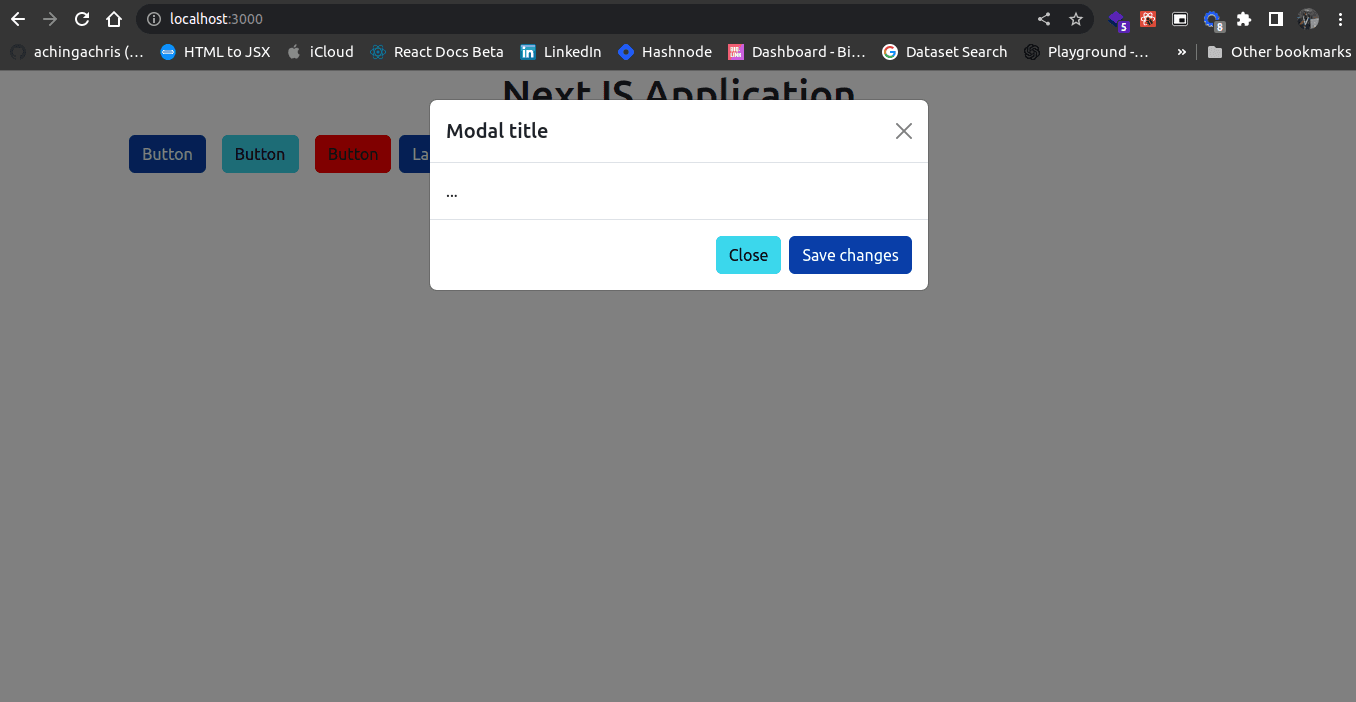
If a modal box pops up! Congratulations, you did it.